
How to Transcribe Audio Files in Minutes
If you've ever tried to manually transcribe an audio file, you know it can be a real headache. Thankfully, AI-powered tools like Whisperit have come a long way, making it possible to convert spoken words into text in just a few minutes. The process is pretty simple: you upload your audio, the AI does the heavy lifting, and then you give the draft a quick once-over for any minor tweaks. It’s a huge time-saver and much easier on the wallet than hiring a manual transcriptionist.
Why Fast and Accurate Transcription Matters
We're all swimming in a sea of audio and video these days, from podcasts and webinars to interviews and team meetings. The ability to quickly turn all that speech into searchable, usable text isn't just a nice-to-have; it's a genuine game-changer.
The old way—manual transcription—is notoriously slow and often expensive. But modern AI has completely flipped the script. In fact, the global audio transcription software market is expected to hit $2.5 billion by 2025 and keeps growing at a rate of 15% through 2033. That's because everyone, from lawyers to teachers to marketers, is realizing how valuable this technology is.
This guide is all about showing you a practical workflow that gets you both speed and accuracy. After all, a good transcript does so much more than just put words on a page.
- It boosts accessibility, opening up your content to people who are deaf or hard of hearing.
- It makes your content searchable. No more scrubbing through a two-hour recording to find that one key quote. Just hit Ctrl+F.
- It's the perfect springboard for new content. That one podcast episode? It can become a blog post, a series of social media updates, or even an email newsletter.
Here's a quick peek at the Whisperit dashboard. We designed it to be clean and intuitive, so you can get started right away.
As you can see, everything you need is right there—uploading a new file or checking on an existing project takes just a click. If you're curious about the magic happening behind the scenes, you can learn more about how voice-to-text AI actually works in our more detailed guide.
Preparing Your Audio for a Flawless Transcription
Before you even think about uploading a file, let's talk about prep work. Taking just a few minutes here can honestly save you hours of cleanup on the other side. Think of it this way: you wouldn't build a house on a shaky foundation, so why start a transcription with messy audio?
The most critical factor, hands down, is audio quality. While today's AI is pretty smart, clear audio is the secret sauce for near-perfect accuracy. If you're recording something new, simple tweaks can make a world of difference. We've put together a guide on how to set up your microphone correctly that's worth a read.
Once your audio quality is sorted, the next hurdle is organization, especially when you're juggling multiple files. We’ve all been there—staring at a folder filled with names like Final_Audio_v2.mp3 or Meeting_Recording.wav is a headache waiting to happen.
Adopting a consistent naming convention is a simple habit that pays huge dividends in efficiency. It clarifies your workflow and ensures you’re always working on the right file.
Simple Naming Conventions That Work
A good naming system gives you context at a glance. Instead of using generic titles, build key details right into the filename. This little habit makes finding exactly what you need a breeze.
Here are a few a real-world examples I use all the time:
- For client work:
ClientName-Project-Date.mp3(e.g., AcmeCorp-Q3Review-20241026.mp3) - For interviews:
IntervieweeName-Topic-Date.wav(e.g., JaneDoe-MarketResearch-20241025.wav) - For team meetings:
Team-MeetingTopic-Date.m4a(e.g., Marketing-CampaignKickoff-20241024.m4a)
With your audio files polished and properly named, you're ready to jump into Whisperit. A solid setup from the start makes the entire process of how to transcribe audio files feel smooth and reliable, not like a chore.
Getting Your First Transcription Started
Alright, you've got your audio files prepped and ready. Let's dive in and get them transcribed.
Getting your files into Whisperit is a breeze. You can either drag them right onto the dashboard or click to browse your computer. It handles all the common formats—MP3, WAV, M4A—so you probably won't have to mess with file conversions, which is always a plus.
Once your file is uploaded, you'll land on the configuration screen. Don't just click "go" yet! This is your chance to give the AI some crucial instructions. Spending a few seconds here can save you a ton of editing headaches on the back end.
Dialing in the Settings for Maximum Accuracy
For most projects, especially something like a podcast with a few different voices, there are two settings I never skip. First, tell the system what language the audio is in. It seems obvious, but even for English, selecting it helps the AI lock onto the right language model.
Second, and this is a big one, make sure speaker diarization is turned on. This is the feature that automatically figures out who is talking and when, labeling them "Speaker 1," "Speaker 2," and so on. If you're transcribing anything with more than one person—an interview, a team meeting, a legal deposition—this is a non-negotiable. It completely eliminates the painful process of manually sorting out who said what.
This simple infographic breaks down the workflow into three core stages.
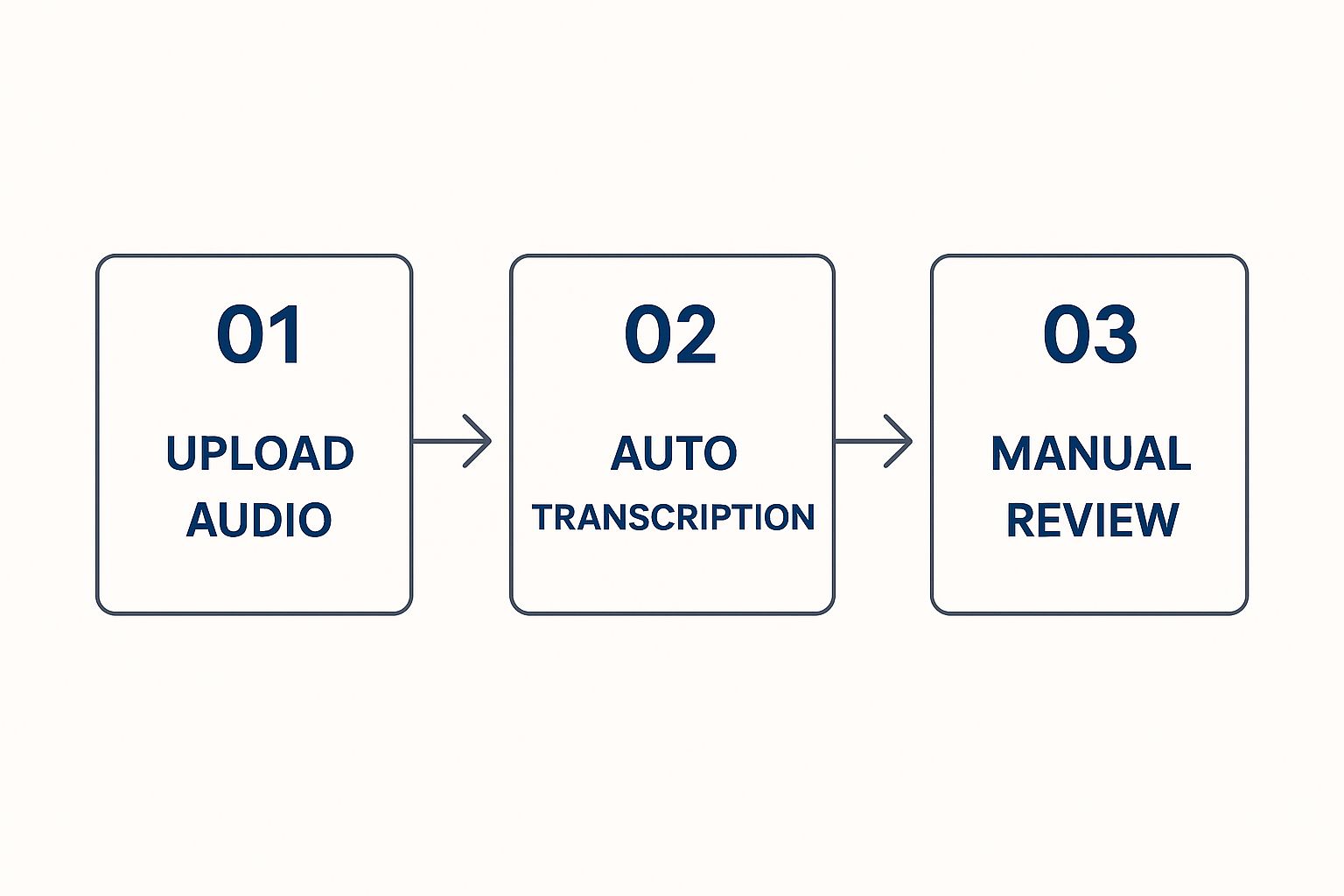
As you can see, the automated part is just the middle step. That final human review is where you polish the transcript into something truly reliable.
To help you get the most out of your transcription, here's a quick look at Whisperit's core features and when I find them most useful.
Whisperit Transcription Feature Breakdown
| Feature | What It Does | Best Used For |
|---|---|---|
| Language Selection | Tells the AI the specific language spoken in the audio. | Every single file. It significantly improves accuracy. |
| Speaker Diarization | Automatically identifies and labels different speakers. | Interviews, podcasts, meetings, focus groups—anything with 2+ speakers. |
| Batch Processing | Uploads and transcribes multiple files with the same settings at once. | Large projects, like a full season of a podcast or a series of lectures. |
| Custom Vocabulary | Allows you to add specific terms, names, or jargon to the AI's dictionary. | Technical, medical, or legal content with specialized terminology. |
Choosing the right combination of these settings is what really makes the difference between a decent transcript and a great one.
Pro Tip: Just by enabling speaker diarization and setting the correct language, you’re giving the AI critical context. In my experience, this alone can boost the accuracy of the first draft by as much as 10-15%, especially in conversations with crosstalk or people with different accents.
The need for high-quality transcription is booming. The U.S. transcription market was already valued at USD 30.42 billion in 2024, and it's only expected to grow. This isn't surprising when you consider how essential accurate records are in fields like law, medicine, and media. You can dig into more of the data on this trend over at Grand View Research.
Got a mountain of files to get through? That's where the batch processing feature comes in handy. It lets you upload and apply the same settings to a whole bunch of files at once, which is a massive timesaver. Thinking about these features is a key part of picking the best AI transcription software for what you need to do.
Once your settings are locked in, just hit "Transcribe." Whisperit will get to work, and you'll get a notification as soon as your draft is ready for review.
Editing Your Transcript for Perfect Accuracy
Alright, the AI has done its part. Now it’s time for the human touch. Even with Whisperit’s incredible accuracy, think of the initial transcript as a solid first draft. The real magic happens when you step in to review and refine it, turning a good transcript into a flawless one. This is the step that separates the amateurs from the pros.
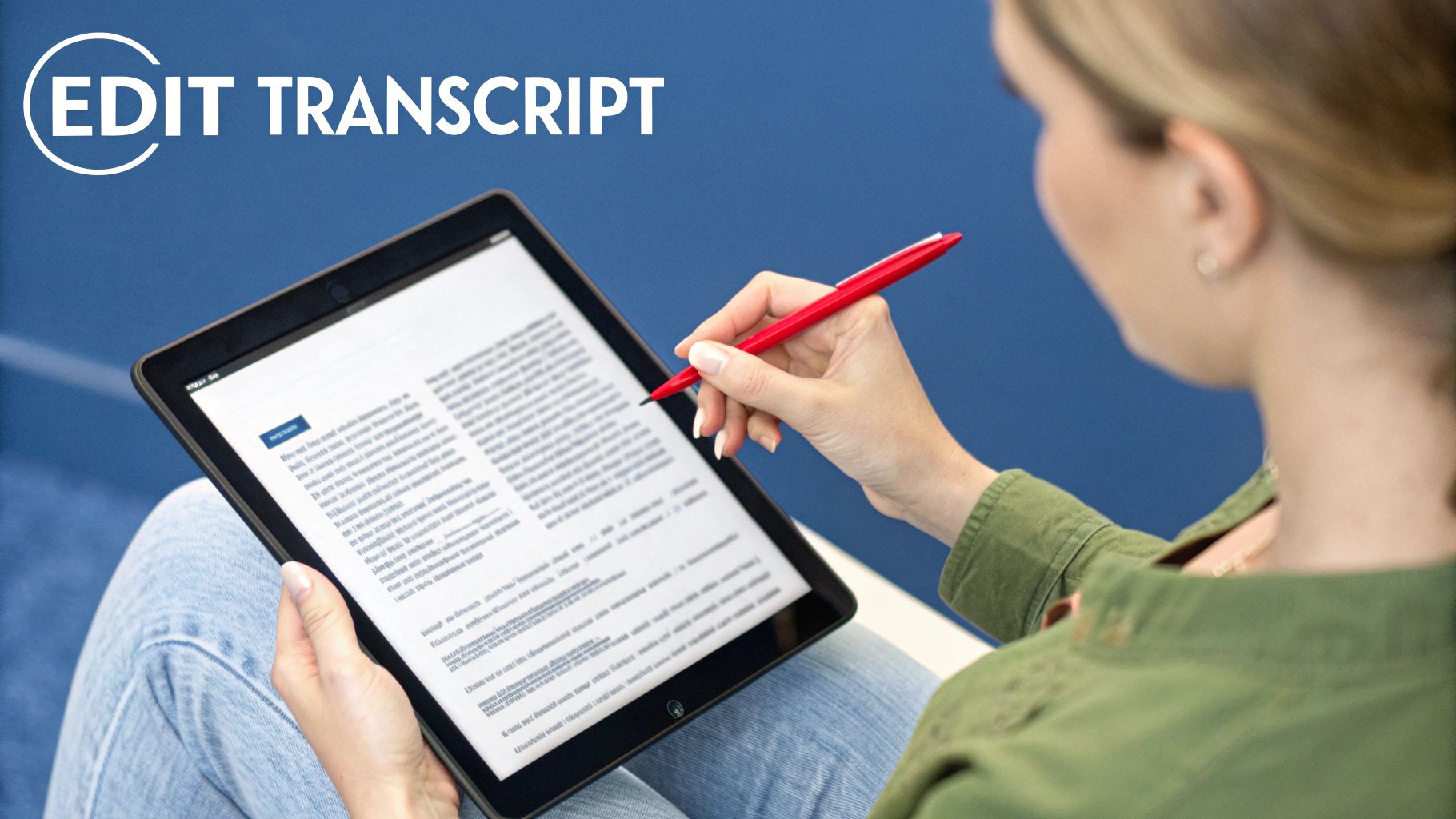
This is where Whisperit’s interactive editor really shines. The audio is perfectly synced with the text, highlighting words as they're spoken. Spot a mistake? Just click on the incorrect word and type the fix. You never lose your place, which makes the whole process smooth and intuitive.
The demand for tools like this is exploding. The global AI transcription market is expected to jump from USD 4.5 billion in 2024 to a staggering USD 19.2 billion by 2034. That’s a massive leap, showing just how much we're coming to rely on this technology.
Refining Common AI Errors
AI is smart, but it's not perfect. It can get tripped up by certain nuances in human speech. When you're editing, keep an eye out for a few common slip-ups.
- Speaker Labels: Sometimes, the AI might get confused about who said what, especially if people talk over each other. It’s a simple fix in the editor—just reassign the text to the right person to keep the dialogue clear.
- Punctuation and Formatting: The AI does a decent job with commas and periods, but it can’t always nail the natural pauses and flow of a conversation. You might need to add a few paragraph breaks or adjust punctuation to make the text easier to read.
- Specialized Terminology: If your audio is packed with industry-specific jargon—think legal or medical terms—the AI might misinterpret some words. Correcting these not only ensures accuracy but can also help the model learn over time.
As you polish the text, you're essentially humanizing AI-generated content, making sure the final output reads naturally.
Time-Saving Tip: Get familiar with the keyboard shortcuts. Using
Tabto play or pause the audio andCtrl+Sto save your work keeps your hands on the keyboard and your editing flow uninterrupted. It’s a small change that makes a huge difference.
For more hands-on advice, take a look at our guide filled with essential https://www.whisperit.ai/blog/transcription-tips-for-beginners. Once you get the hang of this review process, you’ll be producing professional-grade transcripts every single time.
Getting Your Finished Transcript Out Into the World
Alright, you’ve done the hard work of correcting and polishing your transcript. Now, what do you do with it? The final step is getting that text out of Whisperit and into a format you can actually use, whether that's for a client, a colleague, or your own content system.
Your choice of export format really comes down to what you need to do next. Think about the end goal.
Picking the Perfect File Format
For a quick, no-frills copy of the text, the plain text file (.txt) is your best friend. It’s perfect for dropping into an email or a simple document without any formatting getting in the way. It's clean, simple, and universally compatible.
If you need something more structured, like a formal report or a document for legal records, the Microsoft Word (.docx) file is the way to go. This option keeps all the important details like speaker labels and timestamps intact, giving you a professional, organized document right out of the gate.
But for anyone working with video, the real gem here is the SubRip Subtitle (.srt) file. This format is a must-have for video producers and content creators.
- An
.srtfile doesn't just contain the words; it includes the exact start and end times for every single line of dialogue. - You can take this file and upload it directly to platforms like YouTube or Vimeo, and voilà—you have perfectly synchronized closed captions.
This small step can make a massive difference, making your videos more accessible and even boosting their searchability.
The goal isn't just to download a file; it's to make your work immediately useful. Choosing the right format from the start means your transcript will slot seamlessly into your next project, be it a blog post, a legal brief, or a captioned video.
Whisperit also makes sharing a breeze. Instead of the old-school method of emailing files back and forth, you can just generate a secure, read-only link. Send this to your clients or team members, and they can review the final transcript in their browser without needing their own account or having the ability to make accidental edits.
Got Questions About Audio Transcription? We've Got Answers
Even when a transcription tool is straightforward, you'll probably still have a few questions. That's perfectly normal. Let's walk through some of the most common things people ask, so you can get the best possible results from your audio files.
Just How Accurate Is It?
This is usually the first question on everyone's mind. With a high-quality recording, modern AI transcription can hit 95-98% accuracy, which is fantastic for most projects. It’s fast, affordable, and delivers a transcript you can work with almost immediately.
But what about less-than-perfect audio? Things like heavy background noise, multiple people talking at once, or very strong accents can definitely bring that accuracy score down. For everyday business meetings, interviews, or content creation, AI is more than enough. However, for critical legal depositions or detailed medical notes where every single word matters, a human transcriptionist is still your best bet for catching nuance.
Security is also a big piece of the puzzle, especially with sensitive information. If you're working in healthcare, for instance, you'll want to understand the specifics. You can learn more about our commitment to security in our guide to HIPAA-compliant speech-to-text.
How Can I Get Better Audio in the First Place?
This is a great question because the quality of your source file is the biggest factor in getting an accurate transcript.
It really comes down to the old saying: "garbage in, garbage out." A few small tweaks on the recording end can save you a ton of editing time later.
Here are a few simple tips I always give people:
- Get a real microphone. Even an affordable external mic is a huge step up from your laptop's built-in one. It'll focus on your voice and cut down on room noise.
- Find a quiet spot. Close the door, turn off the fan, and move away from the window. The less background chatter the AI has to filter out, the better.
- One speaker at a time. If you're recording a group, do your best to have people avoid talking over each other. This is a tough one for AI (and humans!) to decipher.
Does This Work for Different Languages or Accents?
Absolutely. This is where today's AI really shines. The best transcription platforms have been trained on an incredible amount of audio data from all over the world, covering dozens of languages and a huge variety of regional accents.
The key is to give the AI a heads-up. When you set up your transcription job, make sure you select the correct language spoken in the audio. This tells the system which language model to use, which makes a world of difference in understanding specific dialects and accents right from the start.
Ready to see for yourself how quick and easy it can be? Give Whisperit a try and turn your audio into searchable, editable text in just a few minutes. Get started at https://whisperit.ai.